How to Reduce Image Size by 80% for Faster Websites (Free Tool)
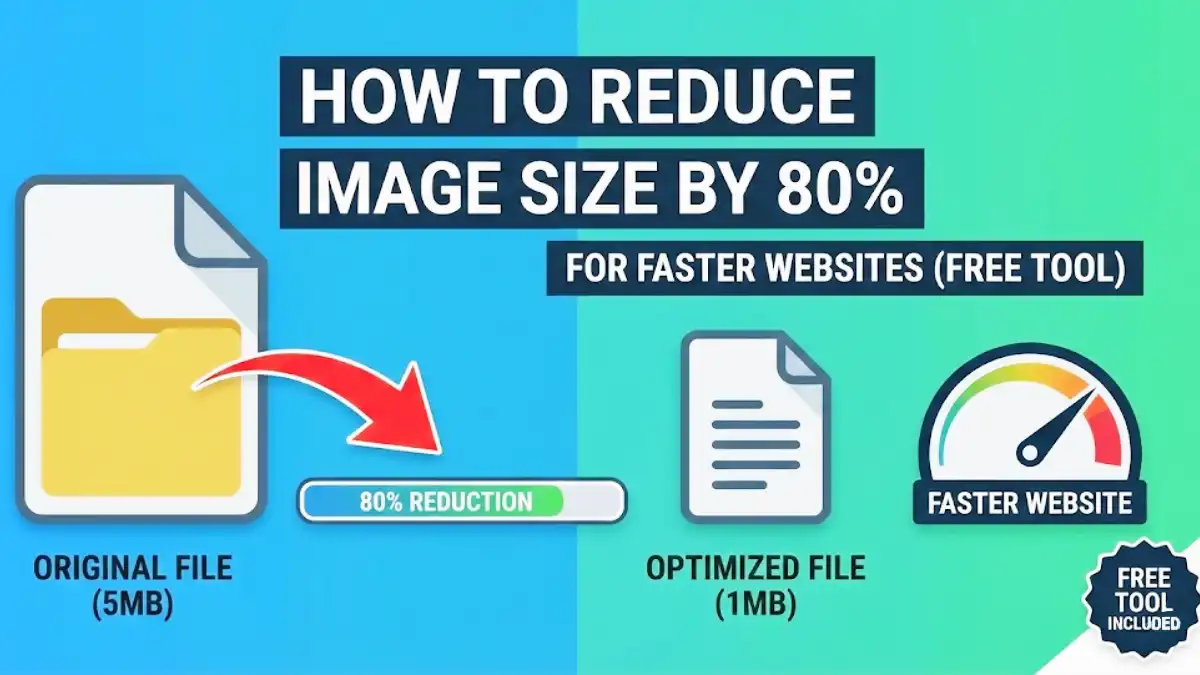
Let's cut the corporate speak. If your website loads slower than 3 seconds on mobile, you're losing visitors. Period. And 9 times out of 10, the culprit is bloated images. The good news? You can reduce image size by up to 80% without anyone noticing the difference. No technical skills required. Just a free tool and 5 minutes.
🖼️ Free Image Compressor
Try Our Free Image Compressor & have 80% file reduction instantly.
Why Image Optimization Isn't Optional Anymore
Google doesn't just suggest fast loading times—they demand them. Since the 2021 Core Web Vitals update, page speed directly impacts rankings. But forget algorithms for a second. Think about your own behavior:
- How long do YOU wait for a product image to load before hitting "back"?
- Would YOU trust a slow, sluggish website with your credit card?
Exactly. Neither would your visitors.
The data doesn't lie: pages that load in 1 second have 3x higher conversion rates than pages that load in 5 seconds (Portent, 2022). And images typically account for 50-60% of total page weight. That's your low-hanging fruit.
How to Reduce Image File Size Without Losing Quality
Most people think compression means blurry, pixelated messes. That's because they're doing it wrong. Smart compression removes only the data humans can't see.
The 3-Step Process We Actually Use
Here's our exact workflow for every image on FreeTopTools.com:
- Resize First: Never upload a 4000px image if it displays at 1200px. Use our Image Resizer first to match display dimensions.
- Compress to 80%: Drag the resized image into our compressor. The 80% slider is pre-set. Hit process.
- Check and Deploy: Preview looks identical? File size dropped 75-85%? Download and upload to your site.
Image Optimization: Format Matters More Than You Think
Using the wrong format is like putting premium gas in a diesel engine. Here's the real-world breakdown:
- JPG/JPEG: Photographs, product shots, complex images. Always.
- PNG: Logos, graphics with text, images needing transparency.
- WebP: The future. 30% smaller than JPG. Use for hero images when possible.
Our secret weapon? After compressing, we run critical images through our Image Converter to create WebP versions. Modern browsers get the WebP, older ones get the JPG fallback. Best of both worlds.
The Dumb Mistakes That Kill Your Page Speed
1. Uploading Straight From Your Camera
That 24MB DSLR photo might look stunning, but it's adding seconds to your load time. Always resize and compress first.
2. Using CSS to Resize Images
Setting width: 500px on a 3000px image doesn't reduce its file size. You're still loading the full 3000px monster.
3. Ignoring Mobile Users
What looks "fine" on your 4K monitor might be a blurry mess on a phone. Always check compressed images on actual mobile devices.
Free Image Compressor Online: Why We Built Our Own
We tried every tool out there. TinyPNG, Squoosh, Compressor.io. They're good. But we wanted something that:
- Works 100% in your browser (no file uploads to random servers)
- Has no limits or watermarks
- Defaults to the optimal 80% compression automatically
- Shows before/after file sizes in real-time
So we built it. Our free image compressor handles JPG, PNG, and WebP files up to 50MB. No registration, no nonsense.
Your 5-Minute Image Speed Audit
Don't overcomplicate this. Right now:
- Go to your homepage
- Right-click your main banner/hero image → "Save as"
- Open our compressor in a new tab
- Drag the image in. Note the "After" file size.
- If it's 70-80% smaller with no visible quality loss, you're golden.
- If not, you just found your first optimization target.
FAQs: Real Questions from Actual Users
Does 80% compression ruin image quality?
Not with smart compression. At 80% quality, you're removing data the human eye can't detect - like microscopic color variations. The image looks identical at normal viewing size but loads significantly faster.
What's better: your free tool or a WordPress plugin?
Our free image compressor gives you complete control and is perfect for batch processing existing images. WordPress plugins are better for automating new uploads. We recommend using both for the best results.
Should I convert all images to WebP format?
Not yet. WebP offers 25-35% better compression than JPG, but browser support isn't 100%. Convert your most important images (hero banners, product shots) using our Image Converter, but keep JPG backups for compatibility.
How small should my images be?
Aim for:
- Hero images: under 300KB
- Content images: under 150KB
- Icons/thumbnails: under 50KB
If you're above these, you can probably optimize further.
Final Word: Stop Thinking, Start Doing
Image optimization isn't a "nice-to-have." It's a "your-business-depends-on-it." A fast site ranks better, converts better, and builds trust instantly.
The easiest win? Your heaviest image. Find it. Compress it. Replace it. Test it.
Our tools are free for a reason: we want your site to be fast. Not just for SEO, but because slow sites suck for everyone.
🖼️ Free Image Compressor
Try Our Free Image Compressor & have 80% file reduction instantly.
Related Free Tools:
- Image Resizer - Resize images to exact dimensions before compression
- Image Converter - Convert images to WebP for better compression
- Paraphrasing Tool - Rewrite text automatically while maintaining original meaning.